Tag: API

  • How to Cut Your AI Token Costs with Prompt Compression

    How to Cut Your AI Token Costs with Prompt Compression

    Just want to be honest with you straight from the get-go. I work with AI APIs a whole lot – Claude, GPT-4, Gemini and more. What I wasn’t doing is paying attention to one major waste of money – overlong prompts.

    Now, don’t worry, nothing sinister, nothing broken – it was simply too verbose. Prompts packed with superfluous text, useless white space, verbose language, and filler that serves no purpose other than to cost you more on your API usage fees.

    But all of that changed once I started taking prompt compression seriously. And now that we have the Compress functionality on our Surge AI Prompt Cleaner site, I’ll show you what it can do, why it’s so important, and how to make it work for you.

    The Problem: Token Bloat Is Real, and It’s Expensive

    Whenever you provide any kind of prompt to an AI model, such as GPT-4o, Claude 3, or even Gemini 1.5, there is an associated cost in terms of tokens. Tokens equate to about three to four letters. This means that if you use a 2,000-token prompt and make API calls ten thousand times in a day, the amount spent on input tokens would be substantial.

    However, what if there is excess information in your prompts? Too many spaces. Duplicates. Escape sequences that found their way into your templates. Instructions that are excessively verbose and wordy.

    That’s the hidden tax most developers never think to audit.

    Here are the real-world things that bloat prompts silently:

    • Copy-pasted text from documents that carries hidden whitespace and formatting
    • Multi-line system prompts with generous spacing “for readability” that AI doesn’t need
    • JSON payloads with pretty-printed formatting sent as-is to the API
    • Repeated context that could be summarised or stripped
    • Escape characters like \n, \t, \\, and \" scattered throughout

    None of these break your prompts. They just make your prompts heavier than they need to be — and in a token-priced world, heavier means more expensive.

    What Is AI Prompt Compression?
    Cut Your AI Token Costs with Prompt Compression

    AI prompt compression is the process of reducing the number of input tokens in a prompt without meaningfully degrading the output quality.

    Think of it the way you think of image compression. A 10MB JPEG and a 1MB JPEG of the same photo can look virtually identical to the human eye. The data that was stripped out wasn’t load-bearing. Prompt compression works on the same principle — identify and remove the linguistic and formatting overhead that contributes tokens but not meaning.

    There are a few ways this gets done:

    1. Whitespace and formatting removal — Collapsing extra spaces, stripping line breaks, removing indentation from JSON. These are “free” savings — zero semantic loss.

    2. Escape character cleanup — Removing or normalising \n, \t, \\, and \" sequences that sneak into prompts and add unnecessary token weight.

    3. Text simplification — Shortening verbose phrases. “In order to be able to achieve the goal of” → “To”. “Please make sure that you” → “Ensure”. This is where real token savings compound.

    4. Redundancy trimming — If you’ve said something twice in a prompt (which happens a lot with templates stitched together from multiple sources), compression catches that.

    Done well, this can reduce your prompt size by 20–50% without your AI model noticing the difference in output quality.

    Introducing the New Compress Feature on Surge

    We just shipped the Compress workflow to surge.edu.lk, and I want to give you a proper tour of how it works.

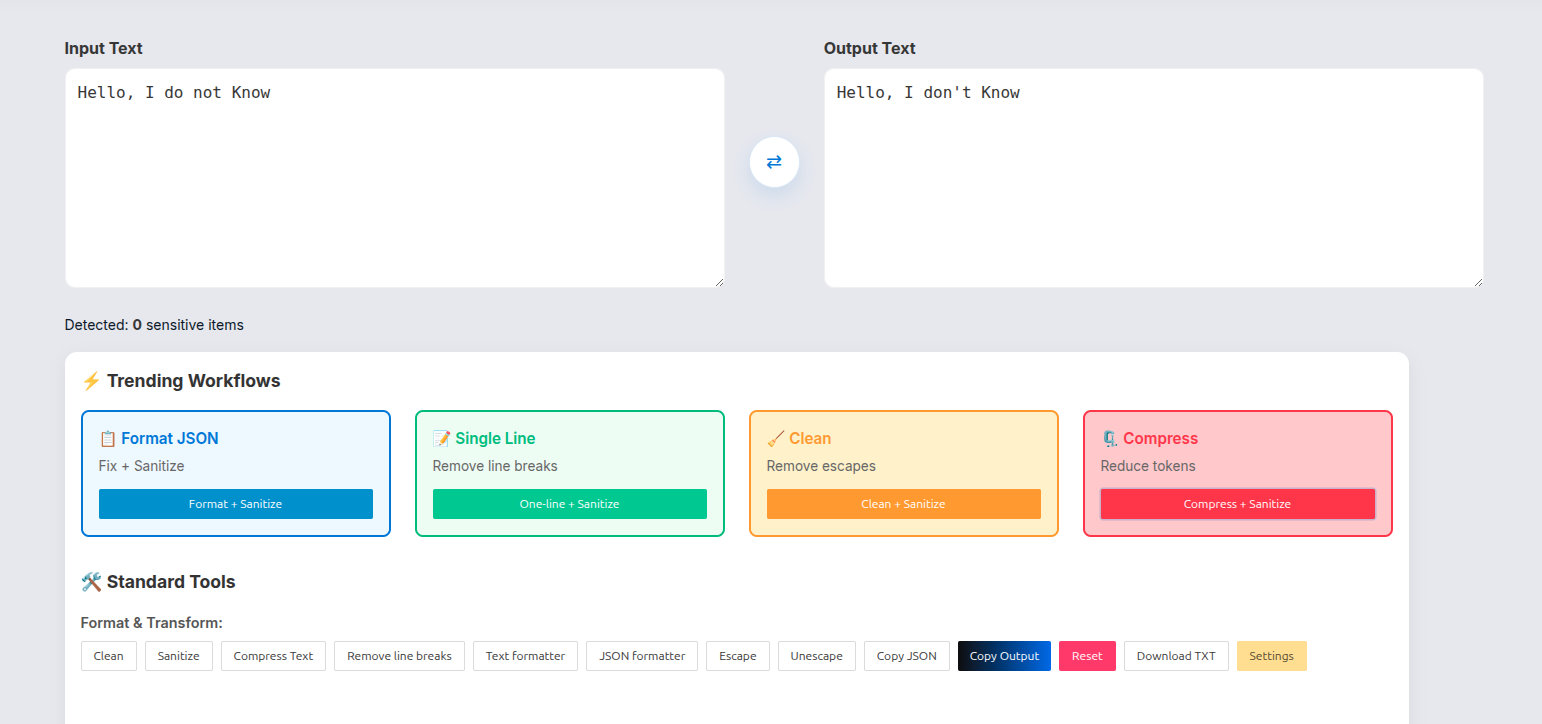
    When you open the tool, you’ll see four Trending Workflows at the top:

    • 📋 Format JSON — Fix + Sanitize
    • 📝 Single Line — Remove line breaks
    • 🧹 Clean — Remove escapes
    • 🗜️ CompressReduce tokensthis is the new one

    Hit Compress + Sanitize and you’re running both token reduction and prompt sanitization in a single pass. That combination matters — more on that below.

    How to Use It: Step by Step

    Step 1: Paste your prompt into the Input Text box.

    This could be a system prompt from your application, a raw prompt template, a JSON payload from your logs — whatever you’re actually sending to the AI.

    Step 2: Click “Compress + Sanitize”

    The tool will process your text and output the compressed version on the right side.

    Step 3: Check the stats at the bottom

    You’ll see Chars, Words, and Tokens for your output. Compare that to what you started with — that delta is your savings, every single API call.

    Step 4: Use the Prompt Savings Calculator

    This is where it gets tangible. Scroll down to the Prompt Savings Calculator (currently in beta), enter your daily request volume and choose your cost preset (or enter a custom cost per 1k tokens), and the tool tells you:

    • Tokens saved per request
    • Cost saved per day
    • Bandwidth saved per day
    • CO₂ saved per day (yes, really — more on that)

    Step 5: Copy or Download your compressed prompt

    Hit Copy Output or Download TXT and drop it into your application.

    That’s it. No account, no server-side processing, no data leaving your browser.

    Token Server via Prompt Compression: What It Means for Production Apps.

    Here’s a concept I want to explain properly because it’s one of those things that sounds technical but is actually very straightforward once you see it.

    Token Server via Prompt Compression refers to an optimisation layer that sits between your application and the LLM API.

    Here’s the flow without it:

    Your App → [Raw, uncompressed prompts] → LLM API → Response

    Here’s the flow with it:

    Your App → [Compress prompts] → LLM API → Response

    The compression step happens before tokens are counted and billed. That’s the whole game. You pay for what you send, so send less.

    For a small weekend project, this might save you a few cents. For a production application making 50,000 API calls per day, this is the difference between a manageable infrastructure cost and one that causes real budget pain.

    The Surge Compress tool is designed to serve this use case. You can:

    • Run a bulk compression pass on your prompt templates before deploying them
    • Use the tool as a QA step whenever you update your system prompts
    • Paste in API logs and compress the prompts to audit how lean your production prompts actually are

    Why it’s so important to perform the Sanitize step correctly (and don’t forget it!)

    There is a reason for the Compress + Sanitize combo. By compressing the token overhead, you will also want to make sure that you do not accidentally leak confidential information about the user.

    The Sanitize step within Surge will check for and manage:

    • Email addresses
    • URL and IP addresses
    • Telephone numbers and IBANs
    • API keys and other credentials
    • Personal names, locations and company names (NLP based checks)

    This is critical if you are developing applications where user data may pass through your prompts. You want to ensure that before you compress and ship your application that your prompt includes no user email addresses or hard-coded API keys that are logged to a file.

    The Realistic Mode for sanitizing is especially clever as it creates fake items to look like the sensitive item rather than replacing sensitive items with ugly placeholders like [EMAIL_1] – this allows you to keep your prompt structurally intact and therefore testable, whilst also removing the actual sensitive value from it.

    The Environmental Angle: Reducing Datacentre Load

    I want to point out something that surprised me when I saw the actual numbers.

    The cost of doing AI inference is high; when you compare the amount of power that goes into running large GPU clusters as data centres to support LLM APIs (large language models), they consume quite a bit of energy. With one compressed prompt, there isn’t a ton of energy saved. However, with a lot of compressed prompts, you add up a lot.

    You can now see the CO₂ saved daily estimate (from using compressed prompts) from the “Savings” calculator on Surge. Although the individual stats may seem small, they’re still real, and as you consider the scale of AI infrastructure at either a company and/or platform level, that number becomes important.

    With shorter prompts, you will:

    Reduce the amount of data transmitted over the network
    Reduce the amount of tokens processed per inquiry
    Reduce the amount of GPU compute done per call
    Reduce the amount of energy consumed at inference layer

    Reducing your costs is the main reason for compressing your prompts. However, this is also an ancillary benefit that I believe is worth highlighting.

    Real Talk: When Does Compression Actually Help?

    Various types of prompts get different amounts of compression benefits. Here’s a simple breakdown:

    High Benefit Scenarios:

    Long prompts (more than 200 tokens) and long copies
    Prompts made up of many small pieces combined together
    Heavy amounts of JSON data in pretty-printers
    Prompts where being written by humans is the origin of the original prompt
    Any prompt that has not been evaluated in some time

    Low Benefit Scenarios:

    Well-edited, small and tight prompts that you have previously worked through
    Prompts that have intentional words, built around meaning
    Creative writing prompts, where tone and style need to match up for each token.

    The real answer is to copy your prompt in to the compression tool and see how many tokens can be saved. If your total savings is 5% then it will probably not save you enough time to change your work flow. If it saves you 35%, then maybe consider changing how you complete your work.


    Final Thoughts

    If you’re building anything with AI APIs and you haven’t audited your prompt token efficiency, there’s a very good chance you’re leaving money on the table every single day.

    The new Compress feature on Surge AI Prompt Cleaner is free, runs in your browser, takes about 10 seconds to use, and now tells you exactly what you’re saving in tokens, cost, bandwidth, and even carbon.

    There’s genuinely no reason not to try it on your next prompt.

    Head over to surge.edu.lk, paste in whatever you’re currently sending to your LLM of choice, hit Compress + Sanitize, and see what the numbers say.

  • How to Instantly Clean & Standardize Your AI Text

    How to Instantly Clean & Standardize Your AI Text

    AI​‍​‌‍​‍‌​‍​‌‍​‍‌ tools can be very efficient in generating ideas, drafts, and long-form content within a matter of seconds. However, the output of these tools is often riddled with various types of errors such as extra spaces, inconsistent punctuation, repeated phrases, formatting issues, and sometimes broken Unicode characters.

    These are the reasons why it is necessary to have a proper text-cleaning tool.

    With this guide, you’ll be able to figure out different ways to clean up, make uniform, and get ready your AI-generated content with the help of free tools available at ​‍​‌‍​‍‌​‍​‌‍​‍‌surge.edu.lk

    Why Clean AI-Generated Text?

    Even the best AI models occasionally produce:

    • Repeated words or sentences
    • Incorrect spacing or line breaks
    • Odd punctuation patterns
    • Inconsistent capitalization
    • Non-Unicode Sinhala characters
    • HTML or markdown fragments
    • “AI stiffness” in tone

    Publishing content with these issues can:

    • Make your writing look unprofessional
    • Harm readability
    • Reduce trust and credibility
    • Affect SEO quality signals

    Meet​‍​‌‍​‍‌​‍​‌‍​‍‌ Surge Text Tools: Your Instant AI Text Fixer

    The text tools at Surge.lk are very helpful to creators, students, bloggers, and teams in cleaning and standardizing their content by just one click.

    These tools are able to do the following things:

    • ✔ removal of unnecessary HTML tags
    • ✔ cleaning of extra spaces and duplicate lines
    • ✔ standardizing of punctuation and spacing
    • ✔ getting the structure ready for readability

    Surge is the one which will help you to write natural, human-sounding content which are ready for publication in any language either English.

    How to Instantly Clean Your AI Text Using Surge

    1.​‍​‌‍​‍‌​‍​‌‍​‍‌ Visit the Surge Text Tools

    Head over to: https://surge.edu.lk

    Editing and conversion options are available for you on the very neat and fresh interface which you will see.

    Paste Your AI-Generated Text

    Take the AI-tool (ChatGPT, Gemini, Claude, etc.) output and paste it in the editor.

    The tool is capable of handling:

    English text

    Mixed content

    Long articles and reports

    Choose Your Cleaning Options

    If you want to, you may choose such instruments as:

    Fix character issues

    Whitespace & Line Break Cleaner – Remove irregular spacing

    Punctuation Standardizer – Normalize commas, periods, and quotes

    HTML Cleaner – Remove and flatten tags

    These changes only take a few moments but they make a big difference in the quality of your ​‍​‌‍​‍‌​‍​‌‍​‍‌writing.

    Click​‍​‌‍​‍‌​‍​‌‍​‍‌ the “Clean” or “Convert” button.

    Your text is handled right away, resulting in:

    Consistent formatting

    Neater paragraphs

    Correct compliance

    Publishing-ready layout

    Without manual work. Without retyping. Without any formatting ​‍​‌‍​‍‌​‍​‌‍​‍‌troubles.

    How Clean Text Improves Your Google EEAT Score

    Clean text supports these signals:

    ✔ Experience

    Your writing becomes clearer, more natural, and easier to read.

    ✔ Expertise

    A well-structured article looks like it was reviewed by a real editor.

    ✔ Authoritativeness

    Clean formatting signals professionalism—especially important for educational or technical content.

    ✔ Trustworthiness

    Readers trust content that’s easy to follow and free from obvious AI artifacts.

    By using Surge to standardize your writing, you strengthen these signals automatically.


    Who Benefits From Surge’s Text Cleaning?

    • Bloggers & Content Creators — polish AI drafts
    • Students — clean Sinhala/English assignments
    • Freelancers — prepare client deliverables
    • Teams & Agencies — ensure brand-consistent formatting
    • Anyone using AI writing tools

    If you publish anything online, clean text gives you an edge.


    Final Thoughts

    AI can help you write faster—but clean, standardized text helps you publish better. With Surge’s text-cleaning tools, you don’t need to spend time fixing formatting issues or rewriting messy AI output.

    Just paste → click → publish.

    Try it now at https://surge.edu.lk and experience how clean your AI text can truly be.

  • How to Convert Multi-Line AI Prompts into One Line (Fast & Free Guide)

    How to Convert Multi-Line AI Prompts into One Line (Fast & Free Guide)

    If​‍​‌‍​‍‌​‍​‌‍​‍‌ you work with AI models such as ChatGPT, Claude, Gemini, or the OpenAI API, you will find that prompt copying is a frequent operation. The copied prompt usually consists of line breaks, tabs, extra spaces, or are formatted in a way that appears to be messy. Such multi-line prompts may be visually acceptable in a chat window, but when you attempt to use them in:

    • API requests
    • JSON payloads
    • code editors
    • automation tools
    • prompt engineering workflows

    …they are not working properly, returning errors, or are incapable of executing.

    That is the reason that a great number of developers and AI users are in need of a straightforward single-line prompt converter, which is a tool for rapidly changing a multi-line prompt into clean, safe, single-line text.

    This tutorial offers a rationale for requiring a one-line prompt, the difficulties arising from the use of multi-line formatting, and the quickest way to turn any AI prompt into a single ​‍​‌‍​‍‌​‍​‌‍​‍‌line.

    What Is a One-Line Prompt?

    A one-line prompt is a text prompt without:

    • line breaks
    • tabs
    • extra spaces
    • hidden characters
    • invisible formatting

    In other words, all text appears in one continuous clean line, which is perfect for:

    • API requests
    • code files
    • JSON
    • curl commands
    • automation tools (Zapier, Make.com, n8n)

    Example:

    ❌ Multi-line prompt:

    Write a long article.
    Make it detailed.
    Add examples.

    ✔ One-line version:

    Write a long article. Make it detailed. Add examples.

    This format is much easier for machines to read.

    Why Multi-Line Prompts Cause Errors.

    Multi-line​‍​‌‍​‍‌​‍​‌‍​‍‌ prompts are likely to have hidden characters:

    • \n – new line
    • \t – tab space
    • \ – escaped backslashes
    • double spacing
    • invisible Unicode characters
    • These things can break:
    • JSON validation
    • API responses
    • scripts
    • browser-based tools
    • automation workflows

    If there are line breaks in your prompt, your application may display errors such as:

    • “Invalid escape character”
    • “Unexpected token in JSON”
    • “String not properly terminated”
    • “Invalid control character”

    None of these problems are present when ​‍​‌‍​‍‌​‍​‌‍​‍‌you.

    Benefits of Converting Prompts into One Line.

    Here​‍​‌‍​‍‌​‍​‌‍​‍‌ is why one-line prompts are the favorite of developers and creators:

    ✔ Compatible with all AI APIs

    OpenAI, Anthropic, Google Gemini, Cohere — they all accept a one-line text without any issues of formatting.

    ✔ Helps in getting rid of unnecessary characters

    There are no extra spaces, and no unusual symbols.

    ✔ Fast processing for tools

    Standard text = less number of errors.

    ✔ Just right for JSON

    Most JSON formats require that the text be in one line or properly escaped.

    ✔ The best way to automate

    Zapier, Make.com, Bubble.io, n8n all work better with single-line ​‍​‌‍​‍‌​‍​‌‍​‍‌prompts.

    Fastest Way: Use an Online One-Line Prompt Converter (Free)

    The​‍​‌‍​‍‌​‍​‌‍​‍‌ most straightforward way is to use an online tool that is specifically made for cleaning and formatting AI prompts.

    • One line converter of a kind just:
    • removes line breaks
    • removes tabs
    • trims whitespace
    • escapes or unescapes characters
    • creates flawless single-line output
    • You just need to:
    • Insert your multi-line prompt
    • Press the button “Convert to One Line”
    • Take the clean output

    Without programming, without installation, and without a ​‍​‌‍​‍‌​‍​‌‍​‍‌database.

    Best Practices for Clean One-Line Prompts.

    To​‍​‌‍​‍‌​‍​‌‍​‍‌ be sure your prompt is working everywhere:

    ✔ Double spaces should be replaced by a single space

    Clean + readable.

    ✔ Unescape characters that are not needed

    Removing \” or extra slashes.

    ✔ Make sure that sentences are separated by periods

    Structured text is better understood by AI.

    ✔ Do not use emojis in API prompts

    They can cause JSON encoding to be broken.

    ✔ Always keep a copy of the prompt that you will test before sending to the API

    The request can be broken by just one character being ​‍​‌‍​‍‌​‍​‌‍​‍‌wrong.

    When Do You Need a One-Line Prompt?

    Typical​‍​‌‍​‍‌​‍​‌‍​‍‌ scenarios are as follows:

    🟦 1. OpenAI API (curl / Python / JS) usage

    Commands are broken by multi-line strings.

    🟦 2. Developing automation systems

    Tools that read single-line text are more accurate.

    🟦 3. Recording prompts in JSON

    JSON is very sensitive to unescaped line breaks.

    🟦 4. Using browser tools or extensions

    Quite a few front-end instruments find it hard to process large multi-line prompts.

    🟦 5. Clipboard content to code editor

    Formatting remains ​‍​‌‍​‍‌​‍​‌‍​‍‌unchanged.

    Conclusion: One-Line Prompts = Faster, Cleaner, Error-Free Work

    AI​‍​‌‍​‍‌​‍​‌‍​‍‌ operations become much more simple if your prompts are:

    • neat
    • secure
    • structured
    • API-ready

    An one-line prompt converter keeps you safe from:

    • time
    • confusion with debugging
    • mistakes
    • unhappiness of API calls

    In case you are an AI user on a daily basis — mainly for programming ​‍​‌‍​‍‌​‍​‌‍​‍.


  • How to Remove Escape Characters (\n, \t, ) from Text Easily (Free Online Method)

    How to Remove Escape Characters (\n, \t, ) from Text Easily (Free Online Method)

    Escape​‍​‌‍​‍‌​‍​‌‍​‍‌ characters such as \n, \t, and \ are the things that come up very often if you copy text from ChatGPT, APIs, JSON files, or code editors. Although these signs are great for coding, they become terribly frustrating if you just want to have neat and readable text.

    If you have escape characters that you do not want and your output is messy, do not be concerned — the solution to these problems is a simple one, quick, and totally free.

    • This manual will teach you:
    • What escape characters are
    • Why to find them in AI or code output
    • How to get rid of them in a flash
    • The easiest online text cleaning tool

    Different kinds of mistakes frequently made because of escape characters

    Let us ​‍​‌‍​‍‌​‍​‌‍​‍‌start.

    What Are Escape Characters?

    Escape characters are special sequences used in programming to represent actions like:

    • Line break\n
    • Tab space\t
    • Backslash\\
    • Quotes\" or \'

    Example:

    Hello\nWorld
    

    Displays as:

    Hello
    World
    

    To humans, they look strange.
    To code, they represent formatting instructions.

    Why​‍​‌‍​‍‌​‍​‌‍​‍‌ Do Escape Characters Come?

    Escape characters are frequently found in the following cases:

    It’s a situation where you copy the text that comes from ChatGPT / Claude / Gemini APIs / Perplexity

    • When you save the text in JSON format
    • Recording the responses in developer consoles
    • Getting data from web APIs
    • Working with text that is inside the code or strings

    To make their output error-free these instruments will by default perform escaping of characters – however the final result will still look as if it is not properly formatted when you put it into a common ​‍​‌‍​‍‌​‍​‌‍​‍‌editor.

    The Fastest Way to Remove Escape Characters (Free Online Tool).

    If​‍​‌‍​‍‌​‍​‌‍​‍‌ you want to clean a text very quickly, you can use a free browser-based AI Prompt Cleaner such as:

    👉 AI Prompt Cleaner / Escape Character Remover Tool

    (no downloads, no login)

    The tool takes care of:

    • \n → new lines
    • \t → real tabs
    • \ → single backslashes
    • \” → quotes
    • \uXXXX → unicode escapes
    • extra spaces
    • broken formatting

    Simply, put your text containing the escape characters in the area → click on Clean / Unescape → the cleaned version of your text will be displayed and you can then copy ​‍​‌‍​‍‌​‍​‌‍​‍‌it.

    Manual Ways to Remove Escape Characters (Less Recommended).

    1.​‍​‌‍​‍‌​‍​‌‍​‍‌ Using Find & Replace

    Open any editor (VS Code, Sublime, Notepad++).

    Replace:

    • \n with actual newline
    • \t with tab
    • \ with \
    • \” with ​‍​‌‍​‍‌​‍​‌‍​‍‌”

    Drawbacks:

    • Time-consuming
    • Easy to break JSON
    • Doesn’t fix Unicode escapes

    Common Errors Caused by Escape Characters.

    Escape characters often lead to issues like:

    ❌ “Invalid JSON: Unexpected token \”

    Means your JSON has double-escaped slashes.

    ❌ “String is not properly escaped”

    Occurs in JavaScript when quotes aren’t escaped.

    ❌ API request fails

    Because the prompt contains invisible formatting.

    ❌ Broken lines inside your text

    From \n or \t spam.

    Using a prompt cleaning tool fixes all these instantly.

    When Should You Remove Escape Characters?

    Remove​‍​‌‍​‍‌​‍​‌‍​‍‌ escape characters:

    • if you are preparing prompts for AI models
    • if you are saving readable data
    • if you are sharing AI output
    • if you are cleaning code snippets
    • if you are formatting API responses
    • if you are creating ​‍​‌‍​‍‌​‍​‌‍​‍‌documentation

    Clean text improves readability and reduces errors.

    Final Thoughts

    Escape​‍​‌‍​‍‌​‍​‌‍​‍‌ characters are a normal part of programming – but they are quite irritating for humans.

    Luckily, it is very easy to remove them if you have the right tool.

    In case your work involves frequent copying of text from ChatGPT, API logs, JSON files, or developer consoles, then a free AI Prompt Cleaner would be a great time-saving and frustration-avoiding tool for ​‍​‌‍​‍‌​‍​‌‍​‍‌you.

  • Fixing Broken Prompts: A Complete Guide for Developers

    Fixing Broken Prompts: A Complete Guide for Developers

    Great​‍​‌‍​‍‌​‍​‌‍​‍‌ AI tools such as ChatGPT, Claude, Gemini, and Llama are amazing in what they do—however, the text they come up with is often of such a nature that when one attempts to incorporate it in coding, APIs, or automation workflows, it fails.

    The developers encounter errors of the sort every day:

    • “Invalid JSON format”
    • “Unexpected token”
    • “SyntaxError: Unterminated string literal”
    • “Escape character not allowed”

    These are the cases where AI output has not been formatted for machines although it is still quite understandable to humans.

    This document is an explanation of the reasons why prompt requests fail and also demonstrates the quickest manner of automatically fixing broken prompts with the help of online tools. There is no need for rewriting, debugging, or manually ​‍​‌‍​‍‌​‍​‌‍​‍‌cleaning.

    Why AI Prompts Break

    AI models are trained to generate readable text, not always machine-safe text. This mismatch creates issues when you try to pass the output into:

    • APIs
    • scripts
    • JSON parsers
    • webhooks
    • automation apps (Zapier, Make, n8n)
    • code editors
    • server environments

    Here are the 5 main reasons your prompts break.

    Escape Characters Everywhere.


    AI tools commonly insert:

    • \n (new line)
    • \t (tab)
    • \\ (escaped slash)
    • \" (escaped quote)

    These break JSON, strings, and code.
    Example:

    {\"name\":\"John\"}

    2. Extra Spaces or Blank Lines.


    AI​‍​‌‍​‍‌​‍​‌‍​‍‌ attempts to beautify the text, however:

    double spaces

    invisible characters

    random indentation

    …are the reasons for the formatting errors in the code or APIs.

    3. Invalid JSON

    AI outputs JSON-like text that looks correct, but isn’t.

    Common issues:

    • missing commas
    • stray spaces
    • inconsistent quotes
    • trailing commas
    • invalid boolean values

    4.Markdown Conflicts.

    Code blocks (```json, ```js) break when copied from an AI chat window.

    AI is formatting your text for humans, not for machines.

    5.Line Break Issues

    Multiple line breaks create:

    • broken arrays
    • broken prompts
    • broken parameters

    Especially in API requests.

    How to Fix Broken Prompts Automatically (Fastest Method)

    The fastest and safest solution is using a browser-based AI Prompt Cleaner. or Other AI Text Cleaner.

    It automatically fixes:

    ✔ Escape characters
    ✔ JSON formatting
    ✔ Line breaks
    ✔ Broken spacing
    ✔ Extra invisible characters
    ✔ Over-escaped text
    ✔ One-line conversion

    You paste → click → clean.
    No coding. No editing. No debugging.

    Perfect for developers.


    Step-by-Step: Fix Any Broken Prompt

    Here’s​‍​‌‍​‍‌​‍​‌‍​‍‌ the full user journey:

    Step 1 — Insert the Confusing Text

    Example (average ChatGPT response):

    { "name": "Olivia", "age": 30, "city": "Los Angeles" }

    Step 2 — Press “Clean Prompt”

    The tool does it by itself:

    removes escape characters

    formats JSON

    removes extra line breaks

    fixes whitespace

    repairs structure

    Step 3 — Get the Clean Output

    Pretty JSON:

    {

    “name”: “Olivia”,

    “age”: 30,

    “city”: “Los ​‍​‌‍​‍‌​‍​‌‍​‍‌Angeles }

    This text is now safe for:

    • API usage
    • JavaScript / Python code
    • automation tools
    • webhooks
    • app development

    Before & After Example.

    Before (Broken Prompt)

    {\n\t\"id\":1,\n\t\"active\":true,,\n\t\"role\": \"admin\"\n}


    Errors:

    • escape characters
    • double comma
    • mixed indentation

    After (Fixed Prompt)

    {
    "id": 1,
    "active": true,
    "role": "admin"
    }

    Clean, consistent, error-free.

    Why Manual Fixing Is a Bad Idea.

    Manually repairing broken AI prompts leads to:

    ❌ invisible character problems
    ❌ missing braces
    ❌ JSON errors
    ❌ string errors
    ❌ broken tab spacing
    ❌ harder debugging

    It wastes your time.

    Final Thoughts

    Automatic cleaning is faster, safer, and more accurate.

    While​‍​‌‍​‍‌​‍​‌‍​‍‌ the content created by AI may seem visually appealing, it is often not suitable for coding, APIs, and automation tools.

    Interrupt characters, escape characters in JSON, changing spaces, and line breaks are some of the areas that cause a prompt to fail.

    The most simple repair is with the use of an AI Prompt Cleaner which is free and works automatically:

    removing the interaction characters

    • formatting JSON
    • making it one line
    • repairing the structure
    • removing the unused spaces

    Without any errors, your programs and API calls will be executed ​‍​‌‍​‍‌​‍​‌‍​‍‌perfectly.