Author: madusanka

  • Why ChatGPT Adds Backslashes and How to Remove Them (Simple Fix)

    Why ChatGPT Adds Backslashes and How to Remove Them (Simple Fix)

    If you’ve ever copied output from ChatGPT, Claude, or Gemini and noticed strange backslashes like:

    • \n
    • \"
    • \\
    • \t

    …you’re not alone.
    Millions of users see this and wonder:

    “Why is my AI adding backslashes?”
    “Is something wrong with my JSON?”
    “How do I remove these without breaking the data?”

    This guide explains exactly why AI models add escape characters and shows the fastest, safest way to remove them using a free online tool.

    What Are Backslashes in AI Output?

    Backslashes​‍​‌‍​‍‌​‍​‌‍​‍‌ are escape characters.

    They are not manually put in by humans but are automatically inserted by AI mdoels to:

    • protect the use of quotation marks
    • format JSON
    • represent new lines
    • make sure the string is valid
    • allow the use of characters that have a special meaning

    In programming languages such as JavaScript, Python, or JSON, escape characters are used to avoid errors.

    For instance:

    \"John\" is the JSON-safe way to represent "John".

    Therefore, the AI is not ​‍​‌‍​‍‌​‍​‌‍​‍‌”doing.

    Why ChatGPT Adds Escape Characters.

    1. You Asked for JSON Output

    When AI generates JSON, it must escape:

    • quotes
    • backslashes
    • new line characters

    Otherwise, JSON becomes invalid.

    2. You Copied From a Code Block

    Markdown often adds formatting protection.

    What you see inside ChatGPT is not exactly what gets copied – the copy includes escape formatting.

    3. API Responses Always Escape Text
    If you use:

    • OpenAI API
    • Claude API
    • Gemini API
    • HuggingFace APIs

    The returned data always includes escape characters because JSON must be encoded safely.

    4. Some Browsers Add Escape Characters When Copying
    Chrome especially does this when copying formatted text.

    The Real Problem:

    You can’t use the messy text as-is.

    Developers face errors like:

    • “Unexpected token”
    • “Invalid escape sequence”
    • “JSON parse error”
    • “Linting failed”

    Writers see broken formatting.

    Automations break in:

    • Zapier
    • Make
    • n8n
    • Airtable
    • Bubble

    So you MUST clean the text before using it.


    🔥 How to Remove Backslashes (Fastest Method)

    One​‍​‌‍​‍‌​‍​‌‍​‍‌ of the simplest ways is to use an AI Prompt Cleaner Tool which is free.

    This tool automatically removes:

    • ✔ \n → a new line
    • ✔ \t → a tab
    • ✔ \ → a double backslash
    • ✔ \” → an escaped quote
    • ✔ extra spaces
    • ✔ unwanted JSON escapes

    Without the need for coding, editing, or downloading of the ​‍​‌‍​‍‌​‍​‌‍​‍‌tools.

    Step-by-Step: Remove Backslashes from ChatGPT Output

    Step 1 — Copy the messy AI text

    For example:

    {\n \”name\”: \”Liam\”,\n \”country\”: \”USA\”\n}

    Step 2 — Paste into an AI Prompt Cleaner

    The tool detects and removes escape characters automatically.

    ai text claner


    Step 3 — Click “Clean Prompt”

    Instantly converts to:

    {
    "name": "Liam",
    "country": "USA"
    }

    Step 4 — Copy the clean result

    Use it in:

    • API requests
    • apps
    • scripts
    • automation
    • documentation

    Done in 1 click.

    Why You Should Never Clean Backslashes Manually.

    Removing them manually causes:

    • broken structures
    • invalid JSON
    • missing quotes
    • extra spaces
    • unintended formatting

    It ruins both human readability and machine parsing.

    A tool is safer and 10x faster.

    When You Should Keep Backslashes.

    Sometimes escape characters ARE needed:

    • ✔ Exporting JSON to APIs
    • ✔ Storing text inside strings
    • ✔ Preparing code for JavaScript/Python
    • ✔ Sending content in webhooks
    • ✔ Embedding text into HTML attributes

    If you remove them improperly, your JSON will break.

    A good cleaner tool lets you choose:

    • Unescape mode
    • Escape mode

    So you get the version you actually need.

    Final Thoughts

    ChatGPT​‍​‌‍​‍‌​‍​‌‍​‍‌ puts backslashes in the text to keep the formatting safe, not to mess up the text.

    However, if you want to use the text again, the escape characters can be quite irritating and disturbing.

    The quickest way to fix it is by an AI Prompt Cleaner that gets rid of these things immediately:

    backslashes

    escaped quotes

    new lines

    tabs

    duplicate spaces

    broken formatting

    Readable text → efficient workflow → no more mistakes resulting from ​‍​‌‍​‍‌​‍​‌‍​‍‌parsing.

  • How to Clean AI Prompts Automatically (Free Online Tool)

    How to Clean AI Prompts Automatically (Free Online Tool)

    Artificial​‍​‌‍​‍‌​‍​‌‍​‍‌ intelligence models such as ChatGPT, Claude, Gemini, and Llama can create impressive content—however, a lot of times their output is disorganized, leaking escape characters, and cannot be directly used in code, APIs, or automation tools.

    Have you ever taken a part of an AI output and found ​‍​‌‍​‍‌​‍​‌‍​‍‌that:

    • \n
    • \t
    • \\
    • \"
    • unnecessary line breaks
    • random spaces
    • broken JSON

    Every​‍​‌‍​‍‌​‍​‌‍​‍‌ day, the question of how to repair AI prompts from faulty outputs runs through the minds of a thousand developers, writers, and AI users. The lucky thing for you? There’s a way to do prompt cleaning and prompt repair automatically via an online tool, and you don’t have to write a single line of code.

    This guide will walk you through the underlying reasons for the creation of such horrible prompts, the reason for the appearance of escape characters, and methods for prompt cleaning by means of short, user-friendly ​‍​‌‍​‍‌​‍​‌‍​‍‌toolkits.

    Why AI Prompts Become Messy


    Structured​‍​‌‍​‍‌​‍​‌‍​‍‌ AI texts like JSON, code blocks, or formatted paragraphs usually have characters that are not visible to the users but are used by the model to understand the structure.

    1. Escape Characters
    AI adds escape characters to preserve:

    • quotes
    • new lines
    • tabs

    For example:
    "Hello \"John\"" → shows escaped quotes
    "Line1\nLine2" → represents a new line

    2. Extra Line Breaks

    AI loves spacing. When copied, spacing becomes broken or duplicated.

    3. Backslashes Everywhere


    Returned by many APIs to ensure JSON stays valid.

    However, if you are trying to use the same text in another way, for instance, a script, prompt template, or CMS, these characters interfere with your ​‍​‌‍​‍‌​‍​‌‍​‍‌work.

    Why Cleaning Prompts Is Important

    Clean prompts are essential for:

    • OpenAI / Claude API requests
    • No-code tools like Make or Zapier
    • JSON-based workflows
    • Chatbots
    • Coding AI projects
    • Continuous automation
    • Developers embedding AI in apps

    A messy prompt = broken automation.

    A clean prompt = error-free processing.

    How to Clean AI Prompts Automatically (The Easy Way)

    The simplest and fastest solution is using a browser-based AI Prompt Cleaner.

    These tools remove:

    • \n
    • \t
    • \\
    • \"
    • ✔ Unicode junk characters
    • ✔ Extra line breaks
    • ✔ Duplicate spaces
    • ✔ Broken JSON formatting

    No installation. No login. No database.

    Step-by-Step: Clean Your AI Prompt

    Here’s the easiest way to clean your prompt instantly:

    Step 1 — Paste your AI text into the cleaner

    Copy the messy output from ChatGPT/Claude/Gemini and paste it.

    You may see:

    {\n    \"name\": \"John\",\n    \"age\": 22\n}

    Step 2 — Click “Clean Prompt”

    The tool automatically:

    • removes escape characters
    • fixes JSON formatting
    • turns multi-line into clean structured format
    • removes unwanted spacing

    Step 3 — Copy your cleaned text

    Now use your clean text in:

    • any automation flow
    • API calls
    • coding projects
    • web apps
    • chatbot templates

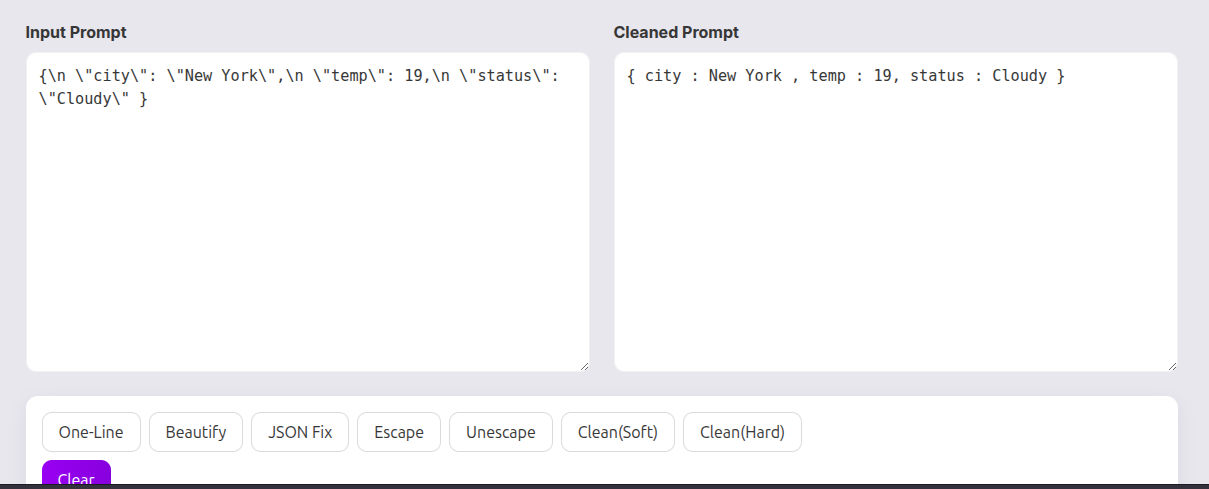
    Example: Before & After Cleaning

    Before:

    {\n \"city\": \"New York\",\n \"temp\": 19,\n \"status\": \"Cloudy\" }

    After :

    {
    "city": "New York",
    "temp": 19,
    "status": "Cloudy"
    }

    Clean. Readable. Error-free.

    Example: Before & After Cleaning

    Bonus Features: One-Line Prompt Mode

    Some​‍​‌‍​‍‌​‍​‌‍​‍‌ users like to keep their prompt single-lined when working with:

    • APIs
    • URL parameters
    • CLI tools

    One of the features that a great cleaner tool has is “One Line Mode” that changes your whole prompt into a concise, API-ready format while still maintaining the integrity of the ​‍​‌‍​‍‌​‍​‌‍​‍‌characters.

    Why Use an Online Cleaner Instead of Manual Editing

    Manual cleaning takes:

    • ❌ time
    • ❌ effort
    • ❌ and causes mistakes

    Online tools provide:

    • ✔ Instant cleaning
    • ✔ No installation
    • ✔ No login
    • ✔ Works on any device
    • ✔ Accurate formatting

    And best of all → 100% free.

    Final Thoughts

    AI​‍​‌‍​‍‌​‍​‌‍​‍‌ has a lot of power, however, the text that it generates is not always neat. A free AI Prompt Cleaner available online helps in saving the time that would be taken to remove bugs and also it makes sure that the prompts are without errors which can then be used for the daily workflow.

    Clean prompts are what will make your AI works to be fast, neat, and of high productivity if you happen to be a developer, writer, researcher, or automation ​‍​‌‍​‍‌​‍​‌‍​‍‌builder.