If you’ve ever copied output from ChatGPT, Claude, or Gemini and noticed strange backslashes like:
\n\"\\\t
…you’re not alone.
Millions of users see this and wonder:
“Why is my AI adding backslashes?”
“Is something wrong with my JSON?”
“How do I remove these without breaking the data?”
This guide explains exactly why AI models add escape characters and shows the fastest, safest way to remove them using a free online tool.
What Are Backslashes in AI Output?
Backslashes are escape characters.
They are not manually put in by humans but are automatically inserted by AI mdoels to:
- protect the use of quotation marks
- format JSON
- represent new lines
- make sure the string is valid
- allow the use of characters that have a special meaning
In programming languages such as JavaScript, Python, or JSON, escape characters are used to avoid errors.
For instance:
\"John\" is the JSON-safe way to represent "John".
Therefore, the AI is not ”doing.
Why ChatGPT Adds Escape Characters.
1. You Asked for JSON Output
When AI generates JSON, it must escape:
- quotes
- backslashes
- new line characters
Otherwise, JSON becomes invalid.
2. You Copied From a Code Block
Markdown often adds formatting protection.
What you see inside ChatGPT is not exactly what gets copied – the copy includes escape formatting.
3. API Responses Always Escape Text
If you use:
- OpenAI API
- Claude API
- Gemini API
- HuggingFace APIs
The returned data always includes escape characters because JSON must be encoded safely.
4. Some Browsers Add Escape Characters When Copying
Chrome especially does this when copying formatted text.
The Real Problem:
You can’t use the messy text as-is.
Developers face errors like:
- “Unexpected token”
- “Invalid escape sequence”
- “JSON parse error”
- “Linting failed”
Writers see broken formatting.
Automations break in:
- Zapier
- Make
- n8n
- Airtable
- Bubble
So you MUST clean the text before using it.
🔥 How to Remove Backslashes (Fastest Method)
One of the simplest ways is to use an AI Prompt Cleaner Tool which is free.
This tool automatically removes:
- ✔ \n → a new line
- ✔ \t → a tab
- ✔ \ → a double backslash
- ✔ \” → an escaped quote
- ✔ extra spaces
- ✔ unwanted JSON escapes
Without the need for coding, editing, or downloading of the tools.
Step-by-Step: Remove Backslashes from ChatGPT Output
Step 1 — Copy the messy AI text
For example:
{\n \”name\”: \”Liam\”,\n \”country\”: \”USA\”\n}
Step 2 — Paste into an AI Prompt Cleaner
The tool detects and removes escape characters automatically.
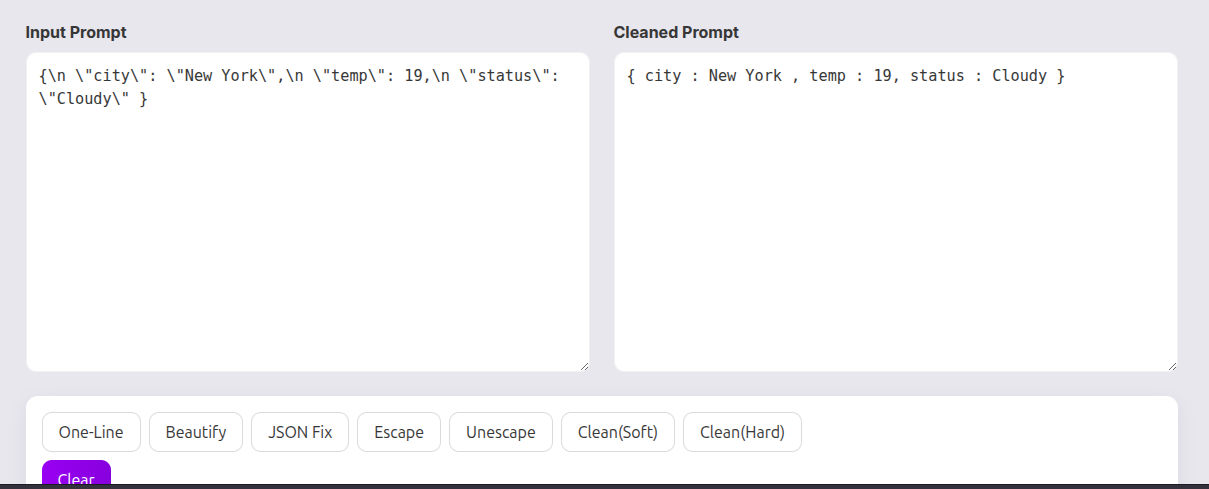
Step 3 — Click “Clean Prompt”
Instantly converts to:
{
  "name": "Liam",
  "country": "USA"
}
Step 4 — Copy the clean result
Use it in:
- API requests
- apps
- scripts
- automation
- documentation
Done in 1 click.
Why You Should Never Clean Backslashes Manually.
Removing them manually causes:
- broken structures
- invalid JSON
- missing quotes
- extra spaces
- unintended formatting
It ruins both human readability and machine parsing.
A tool is safer and 10x faster.
When You Should Keep Backslashes.
Sometimes escape characters ARE needed:
- ✔ Exporting JSON to APIs
- ✔ Storing text inside strings
- ✔ Preparing code for JavaScript/Python
- ✔ Sending content in webhooks
- ✔ Embedding text into HTML attributes
If you remove them improperly, your JSON will break.
A good cleaner tool lets you choose:
- Unescape mode
- Escape mode
So you get the version you actually need.
Final Thoughts
ChatGPT puts backslashes in the text to keep the formatting safe, not to mess up the text.
However, if you want to use the text again, the escape characters can be quite irritating and disturbing.
The quickest way to fix it is by an AI Prompt Cleaner that gets rid of these things immediately:
backslashes
escaped quotes
new lines
tabs
duplicate spaces
broken formatting
Readable text → efficient workflow → no more mistakes resulting from parsing.
Leave a Reply